

Xplan is where an Australian advice practice does the thinking: the fact find, the modelling, the insurance research. AdviceDocs is where that work becomes a Statement of Advice. This guide walks through how Xplan users move from one to the other, step by step.
How does AdviceDocs work with Xplan?
AdviceDocs works from the documents Xplan already produces. Once the adviser has modelled the advice, they download the Wealth Solver and Risk Researcher merge reports, export the Xtools+ scenarios as CSV files, and download the client merge report. Together with a short paraplanning request describing the advice, those files are everything AdviceDocs needs to draft the SoA.
There is no data mapping to set up. AdviceDocs accepts Word (.docx), PDF, CSV and image files as they come out of Xplan. CSV exports are read as raw data, so every year of a cashflow projection is available for tables and charts. Long, content-heavy Word and PDF documents are read page by page in their printed layout, so tables of premiums, fund options and projections are read the way the adviser sees them.
Step 1: Download the reports from Xplan
Each Xplan tool has its own export. None of them needs anything special for AdviceDocs; the standard merge reports and CSV exports are what it is built to read.
Wealth Solver: the scenario merge report
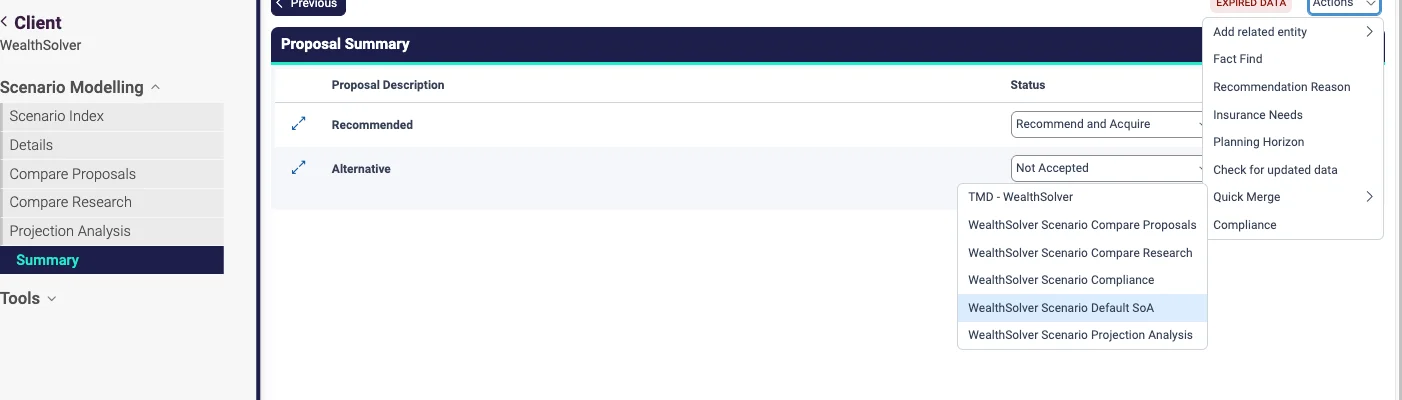
- Open the client’s Wealth Solver scenario and go to the Summary.
- Open Actions, then Quick Merge.
- Choose the scenario report your practice uses — for example WealthSolver Scenario Default SoA — and save the Word document.
Risk Researcher: the insurance merge report
- Open the client’s Risk Researcher scenario and review the premium estimates for each proposal.
- Go to Recommendations.
- Open Actions, then Quick Merge, and choose the Risk Researcher SoA report.
Xtools+: the scenario as a CSV file
- Open the client’s Xtools+ scenario (CALM) and display the cashflow and net assets view.
- Click the settings cog on the table header.
- Choose Export as CSV. Export the base scenario and the proposed scenario separately so AdviceDocs can compare them.
The client merge report
Finally, download the client’s fact find through Merge report on the client menu. It gives AdviceDocs the client’s personal details, goals, assets, liabilities and existing products.
Step 2 (optional): Set up your firm in AdviceDocs
This step is done once per practice, not once per client, and every part of it is optional — AdviceDocs works out of the box. It is how a practice makes every SoA sound and look like its own.
- Firm rules: up to ten short rules the AI follows in every document, such as how fees are described or which disclaimers always appear.
- Writing style: upload a previous SoA and AdviceDocs describes how your practice writes — tone, person, sentence length — then applies it to every document. The description can be edited at any time.
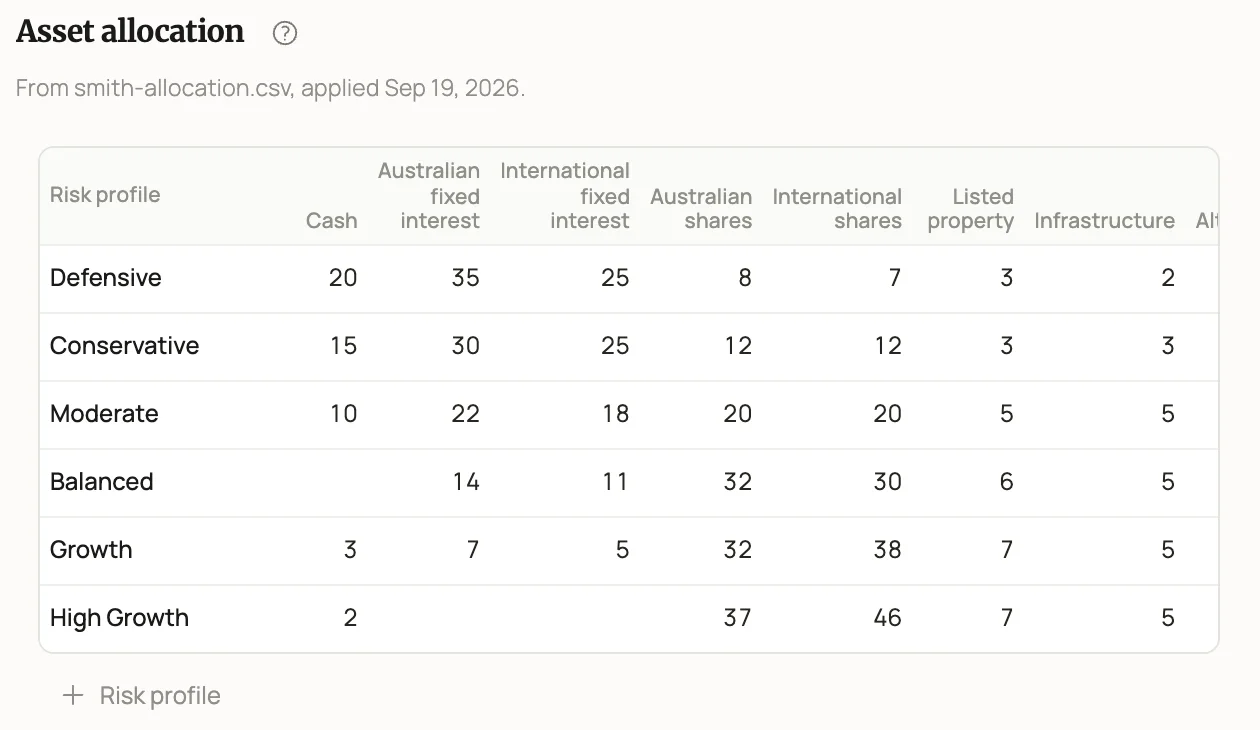
- Asset allocation: your asset allocation for each risk profile and your expected return for each asset class. Projections use your numbers and flag them as assumptions. A practice that skips this step is given the AdviceDocs defaults.
- Templates: every practice starts with its own branded SoA. Pages, wording and instructions can be edited in the browser, like editing a document, to match how the practice already presents advice.
Step 3: Upload the Xplan documents and a paraplanning request
In AdviceDocs, choose Generate, pick the Statement of Advice template, and drop in the files from Xplan together with the paraplanning request. The request is a short Word document in the adviser’s own words. It does not need a set format, but a good one covers:
- Fees: the advice fee, any ongoing fee and how each is paid.
- Strategies for each entity: what is recommended to the client, to their partner, jointly, and to any trust or SMSF — for example a rollover, contributions, a debt recycling strategy or new insurance cover.
- Alternative strategies: what else was considered and why it was not recommended.
Each file is read as it uploads. Word documents are converted and read page by page, and each CSV shows its size in characters once it has been read. When every file is ready, send it.
Step 4: Answer the questions
Before AdviceDocs writes a word of the SoA, it reads every uploaded document in full and works out each fact the template needs. Every value it takes from a document is recorded with the page it came from and the quote that supports it. Where a value has to be worked out — an age from a date of birth, a total from a list of holdings — it records how it was calculated and which figures it used.
Then it asks the adviser about what is left: facts it could not find, figures where two documents disagree, and readings it is not confident about. It does not ask for anything it has already found or worked out, and it asks for each fact only once. That is the same check a paraplanner does before starting a draft, done in a few minutes instead of an email thread.
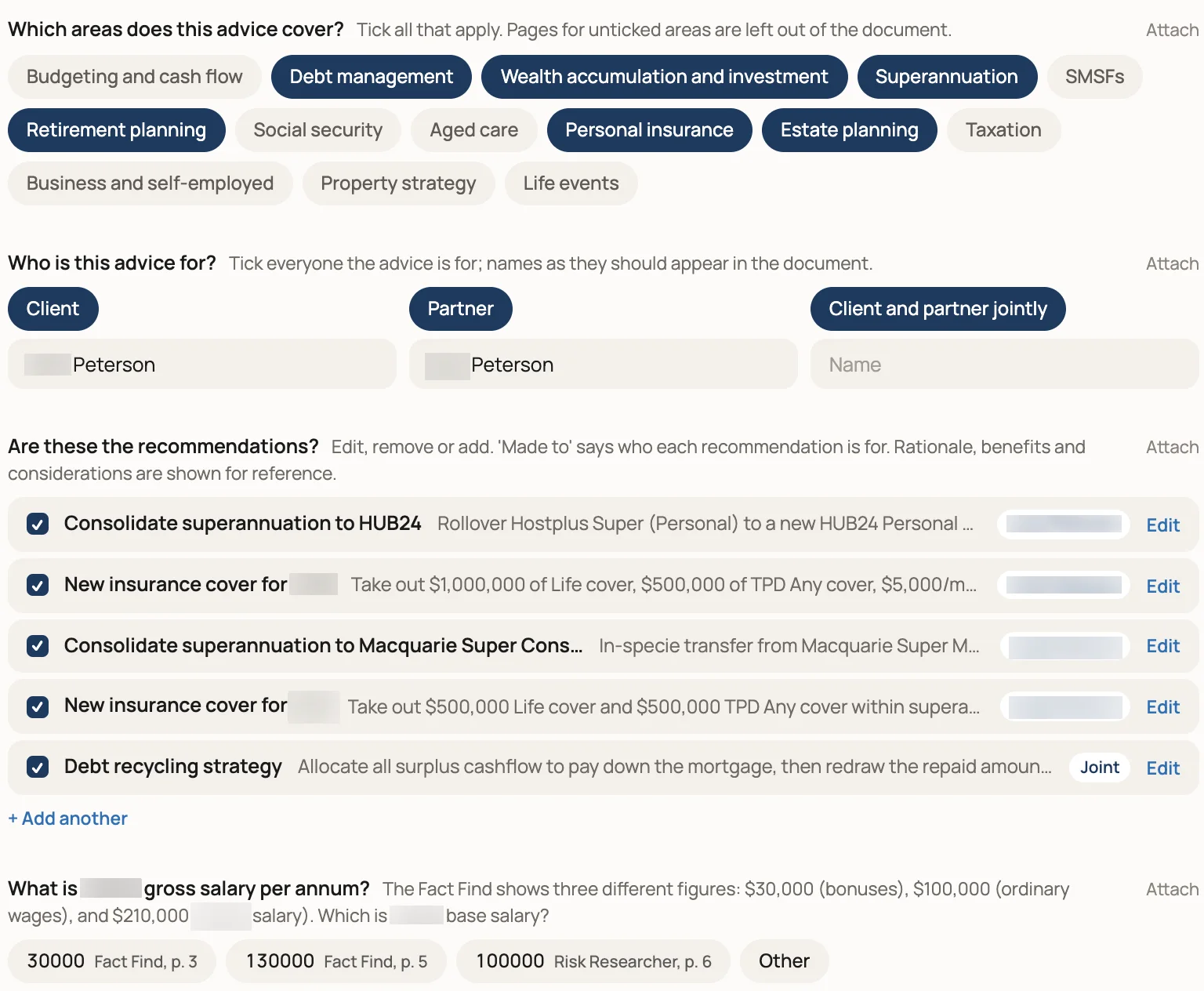
- Scope: the areas of advice the SoA covers — superannuation, insurance, investment, debt and so on — pre-ticked from the paraplanning request.
- People and entities: the client, their partner, and any trust or SMSF, each with its name.
- Recommendations: one row per strategy, with who it is made to. Any recommendation that should not be in the SoA can be unticked.
- Conflicts: where documents disagree, each figure is offered as a choice with the document and page it came from.
- Missing facts: short questions, prefilled with a suggested answer to confirm wherever AdviceDocs has a likely one.
There are at most three rounds of questions, and most SoAs need one. Once the answers are in, AdviceDocs writes the document.
Step 5: Review the finished SoA
The finished SoA opens in the practice’s own template: the cover, the scope of advice, the recommendations for each person, projections from the Xtools+ scenarios, the insurance recommended through Risk Researcher, and the fees.
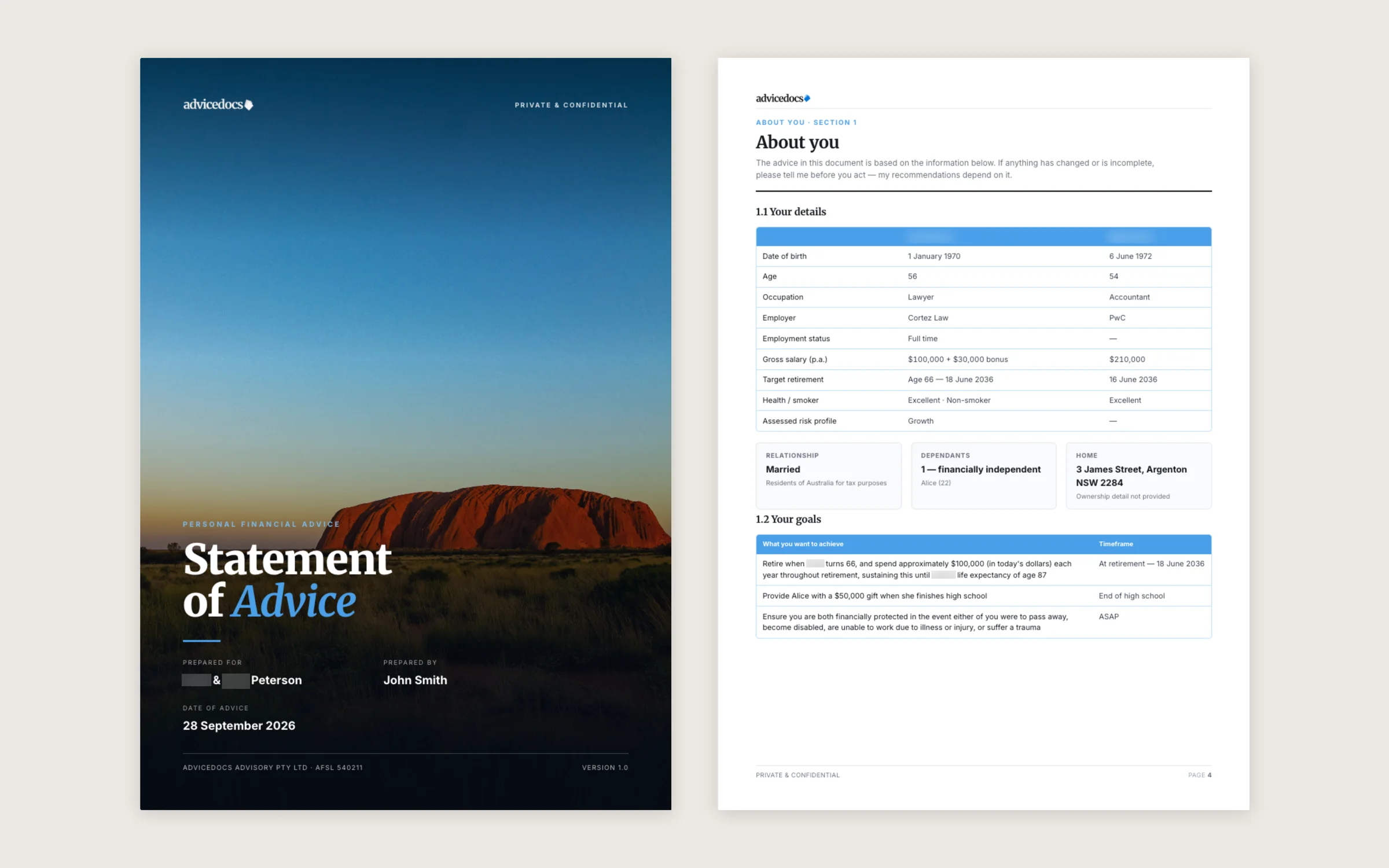
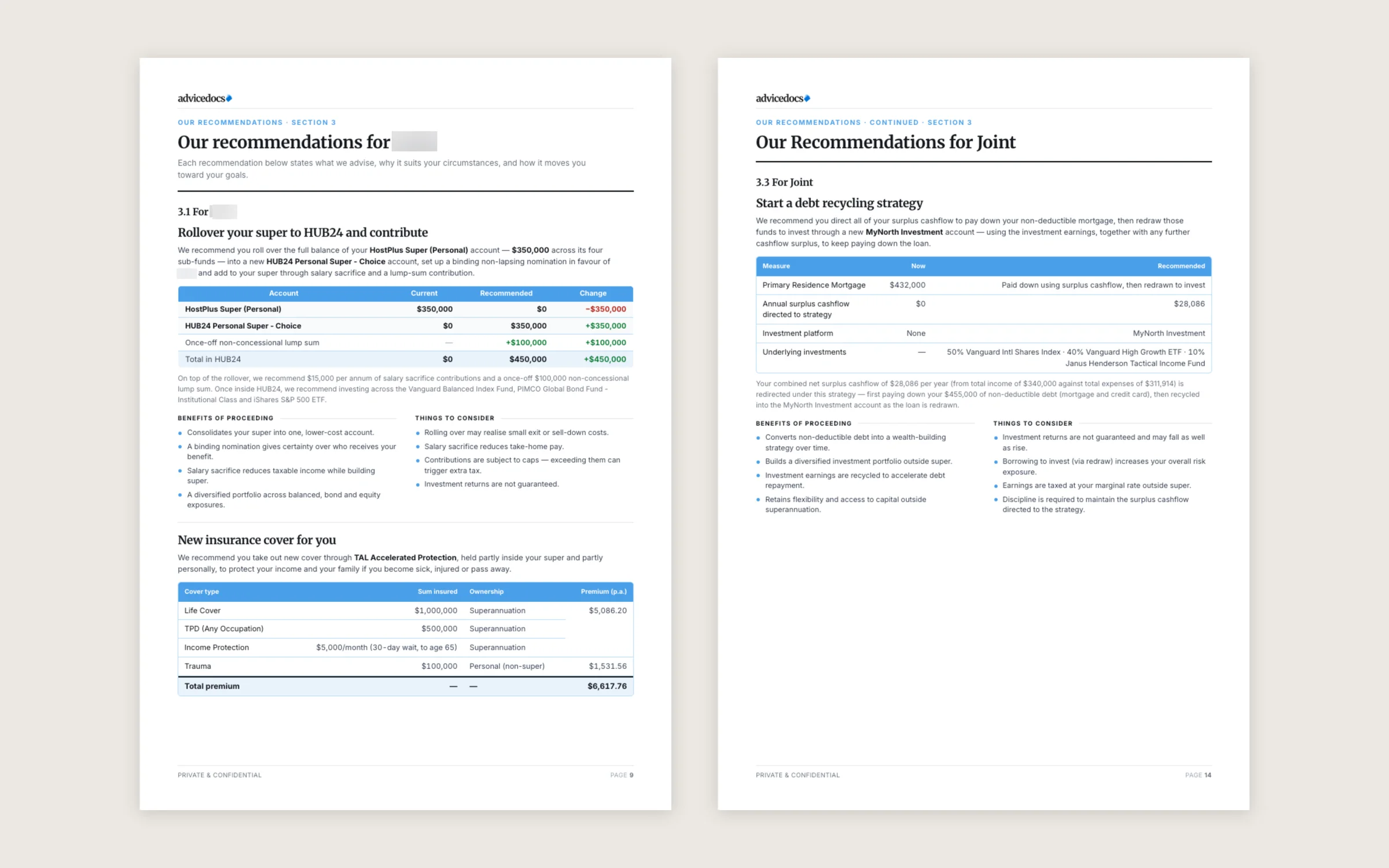
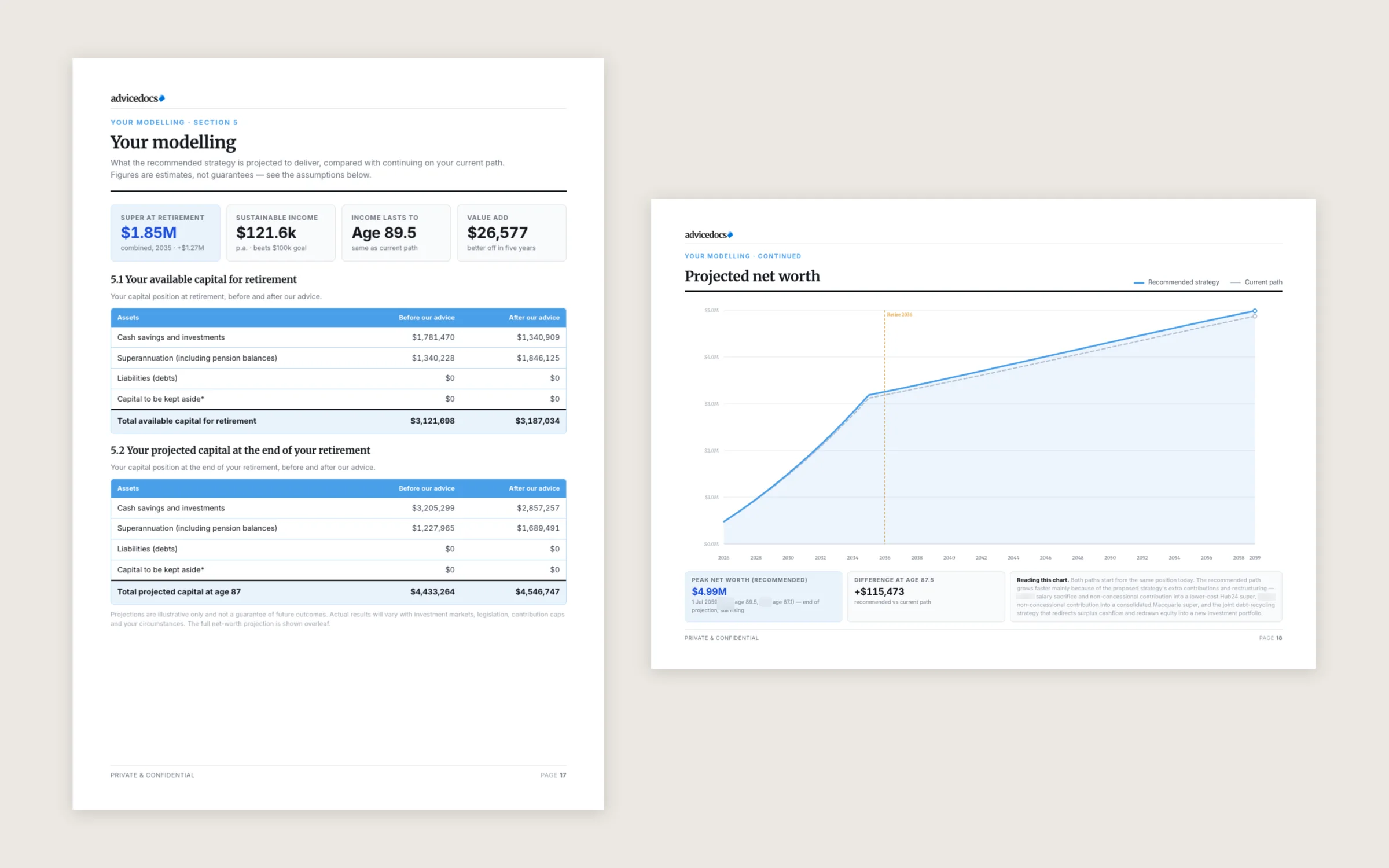
From here the adviser reviews the document the way a paraplanner would. There are two ways to make changes:
- Edit it directly: click any text, table or figure and change it, like a word processor. Pages can be added or removed, and every change can be undone.
- Ask for an AI edit: leave a comment on any part of the document — “shorten this to two paragraphs”, “add the alternative of keeping the existing fund” — and AdviceDocs rewrites that part.
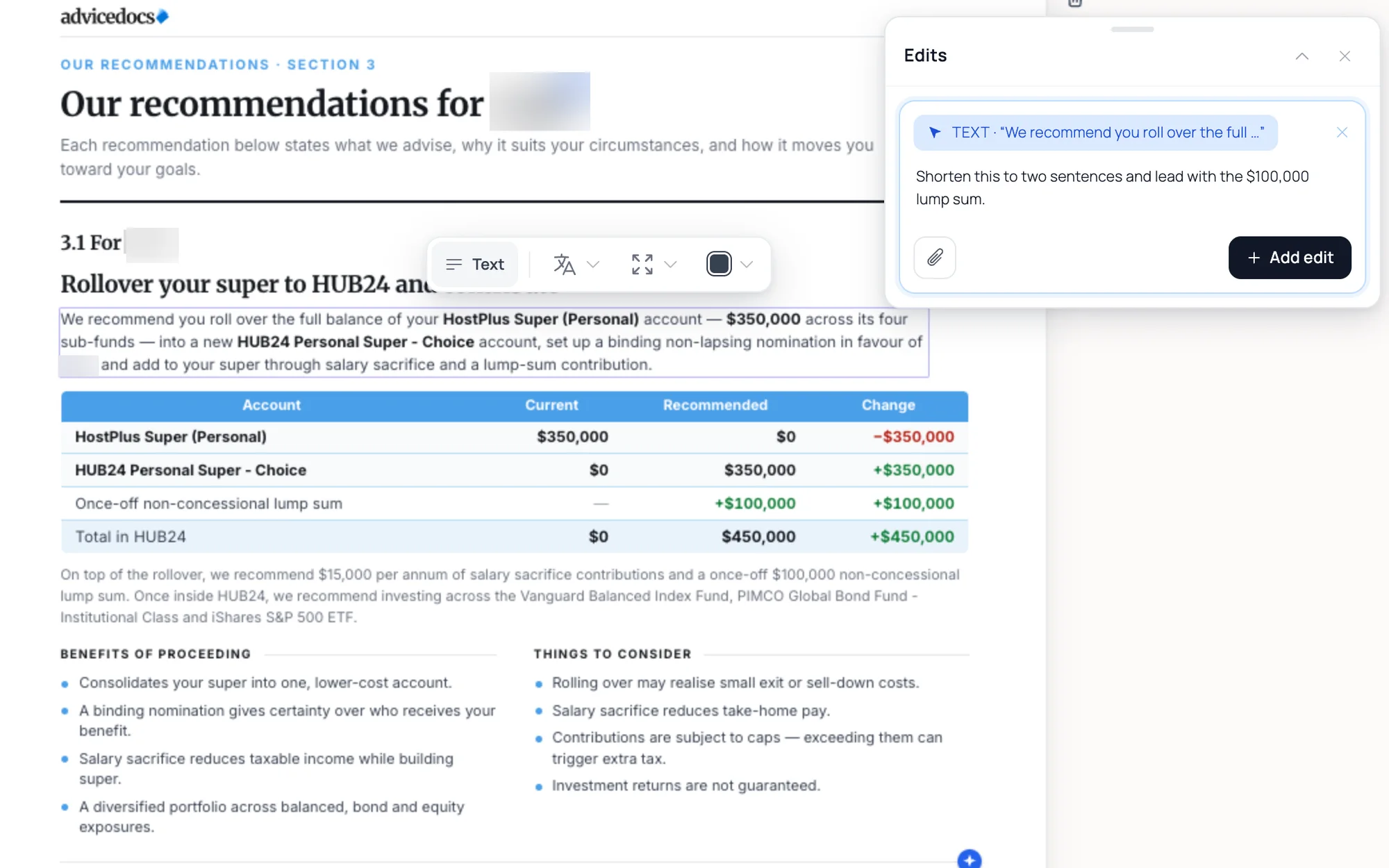
Anything AdviceDocs could not confirm is flagged, not hidden: a figure it calculated is marked as an assumption with its working, and a value nobody supplied is marked as missing. When the review is done, export the SoA to PDF.
Summary: from Xplan to a finished SoA
- About an hour in Xplan: the adviser models the advice in Wealth Solver, Risk Researcher and Xtools+ as they already do, then downloads the merge reports and CSV exports.
- 10–20 minutes in AdviceDocs: upload the files and the paraplanning request, answer the questions, and review a finished SoA.
- Around four hours saved on editing: the SoA arrives written, laid out and paginated, so the adviser checks it instead of building it.
- A document that looks like the practice’s own: every SoA uses the practice’s custom template, colours, fonts, writing style and firm rules.
- Every figure is traceable: values taken from documents carry their page and quote, calculated values carry their working, and anything uncertain is flagged for review.
- Built for Xplan: AdviceDocs was designed around Xplan’s exports — merge reports, Risk Researcher and Wealth Solver reports and Xtools+ CSVs — and works just as well with documents from Plutosoft, Midwinter, AdviceOS and AdviserLogic.
For a wider look at the platform, read How AdviceDocs works for financial advisers, or start a free trial and generate your first SoA from your own Xplan files.
Frequently asked questions
Does AdviceDocs connect directly to Xplan?
No. AdviceDocs has no API connection to Xplan. It works from the files Xplan produces: the adviser downloads the Wealth Solver and Risk Researcher merge reports, the Xtools+ CSV exports and the client merge report, and uploads them. Because the input is a set of documents rather than a data feed, nothing in Xplan has to be changed or set up.
Which Xplan files should I upload to AdviceDocs?
The Wealth Solver scenario merge report, the Risk Researcher merge report, the Xtools+ base and proposed scenarios exported as CSV files, the client merge report or fact find, and a paraplanning request describing the fees, the strategies for each entity and any alternatives considered.
How long does it take to generate an SoA from Xplan files?
After about an hour of modelling in Xplan, generating the SoA in AdviceDocs takes 10–20 minutes, including answering its questions and reviewing the finished document. It saves around four hours of editing compared with building the SoA by hand.
Why does AdviceDocs ask questions before writing the SoA?
So the SoA is not written on guesses. AdviceDocs reads every uploaded document first, then asks only about facts it could not find, figures where documents disagree, and readings it is not confident about. There are at most three rounds of questions, and it never asks for a fact twice.
Does AdviceDocs only work with Xplan?
No. AdviceDocs was designed around Xplan’s exports, but it reads any Word, PDF, CSV or image file, so practices using Plutosoft, Midwinter, AdviceOS or AdviserLogic upload their own reports in the same way.